Table of contents
Open Table of contents
What Is a Terminal Multiplexer?
Let’s start from the beginning. A terminal multiplexer is a tool that lets us run several terminal sessions inside one terminal window. Think of it as opening terminals inside a terminal.
So, instead of opening three different terminal windows for the editor, the development server, and some logs, we can split the same terminal into panes and tabs. We can also detach from a session, leave commands running, and attach again later.
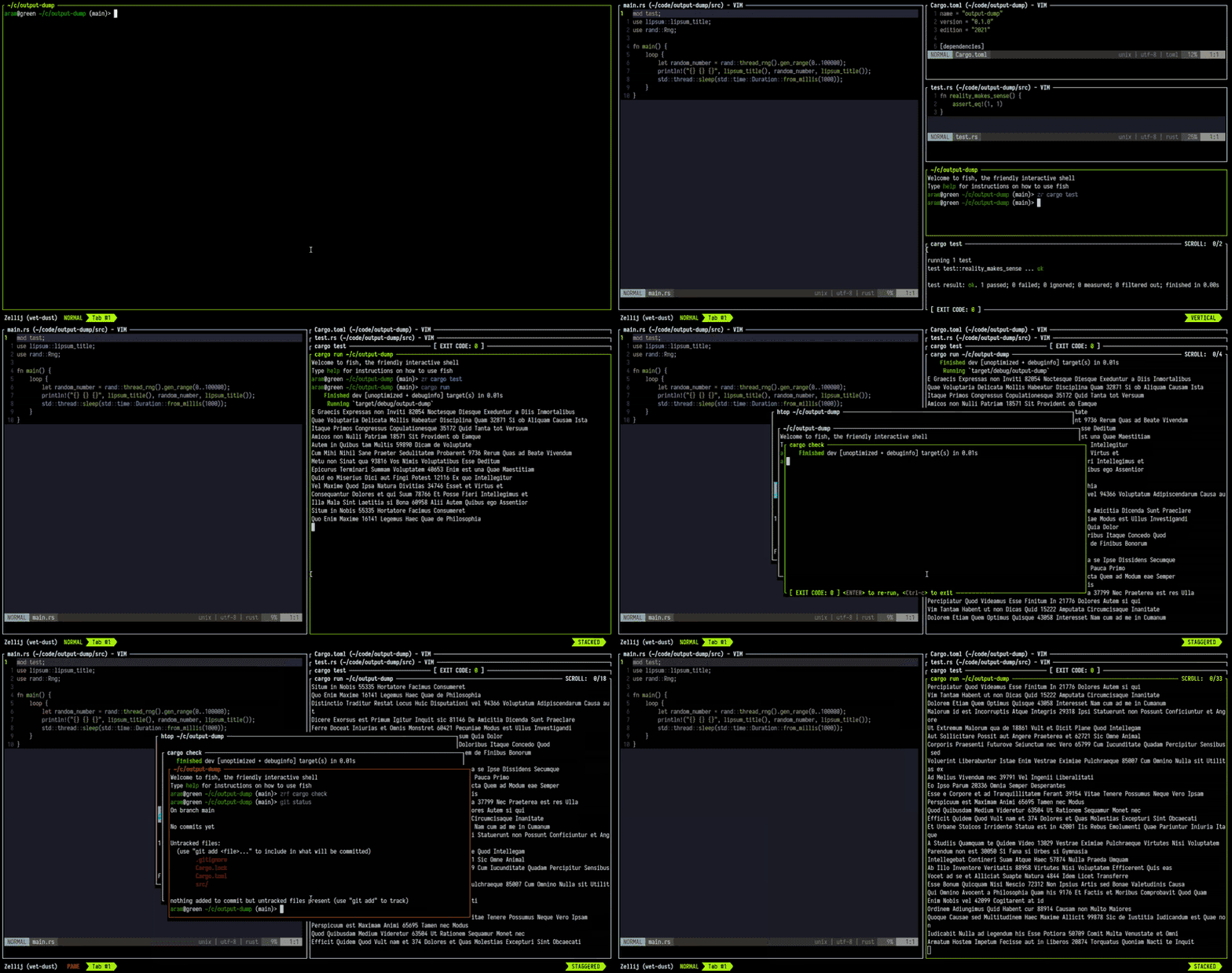
That is the main reason tools like tmux have been so useful for years, especially when working through SSH or when we want a repeatable terminal workspace. You can just run a super long command, detach, and come back later to check the results. Otherwise, the second you close the terminal, the command is gone.
Why I Tried Zellij
I have always tested and used tmux on and off. But lately I saw a post on Reddit about Zellij and became interested in it, and honestly, I love it.
The main difference for me is that Zellij feels much more discoverable out of the box. It has a visible UI, clear modes, pane names, tabs, and a friendlier default experience.
That does not mean tmux is obsolete. I would still choose tmux on servers where I want the safest and most common option. But for my local development machine, Zellij feels nicer.
tmux vs Zellij
If there is one thing that we love in the Linux community, it is comparing tools, distros, or basically everything. So I am going to keep it short.
- tmux: Installed in many servers. The classic choice, mature, scriptable, and lightweight. My choice when I want something fast, simple, and available everywhere.
- Zellij: This is the friendlier choice: better defaults, a built-in status bar, layouts in KDL, plugins, and a more visual workflow.
To be honest, I am using both. I do not need to replace tmux everywhere, and it is nice that it is available on basically every system, but I do enjoy Zellij for day-to-day development, as it is a bit more fancy (I can’t believe I wrote that).
Basic Configuration
Zellij stores its configuration in ~/.config/zellij/config.kdl.
The easiest way to start is to dump the default config and edit it:
mkdir -p ~/.config/zellij
zellij setup --dump-config > ~/.config/zellij/config.kdl
The config file is written in KDL. A small configuration can look like this:
pane_frames true
mouse_mode true
copy_on_select false
scroll_buffer_size 10000

ui {
    pane_frames {
        rounded_corners true
    }
}
And if we want a simple pane shortcut, we can add a keybind:
keybinds {
    normal {
        bind "Alt n" { NewPane; }
        bind "Alt h" "Alt Left" { MoveFocusOrTab "Left"; }
        bind "Alt l" "Alt Right" { MoveFocusOrTab "Right"; }
    }
}
A Small Script for a Project Workspace
Layouts are where Zellij becomes really practical. A layout is just a KDL file that describes panes, tabs, and commands. I use it all the time at work, where we usually have to run a few microservices, a development server, and some logs. Zellij makes it easy to script this.
For example, this script opens one tab with three panes:
- An editor.
- A development server.
- A small
git statuswatcher.
Keep something like this as ~/bin/zj-project:
#!/usr/bin/env bash
set -euo pipefail

layout_file="$(mktemp -t zellij-project.XXXXXX.kdl)"
trap 'rm -f "$layout_file"' EXIT

cat > "$layout_file" <<LAYOUT
layout {
    tab name="project" split_direction="vertical" {
        pane command="bash" focus=true {
            args "-lc" "${EDITOR:-nvim} ."
        }
        pane split_direction="horizontal" {
            pane command="bash" {
                args "-lc" "pnpm dev"
            }
            pane command="bash" {
                args "-lc" "while true; do clear; git status --short; sleep 2; done"
            }
        }
    }
}
LAYOUT

zellij --layout "$layout_file"
Then we make it executable:
chmod +x ~/bin/zj-projectAnd from any project folder:
zj-projectThese commands are just examples, but you get the idea.